
How to Encrypt Hard Drive: BitLocker, FileVault & Linux
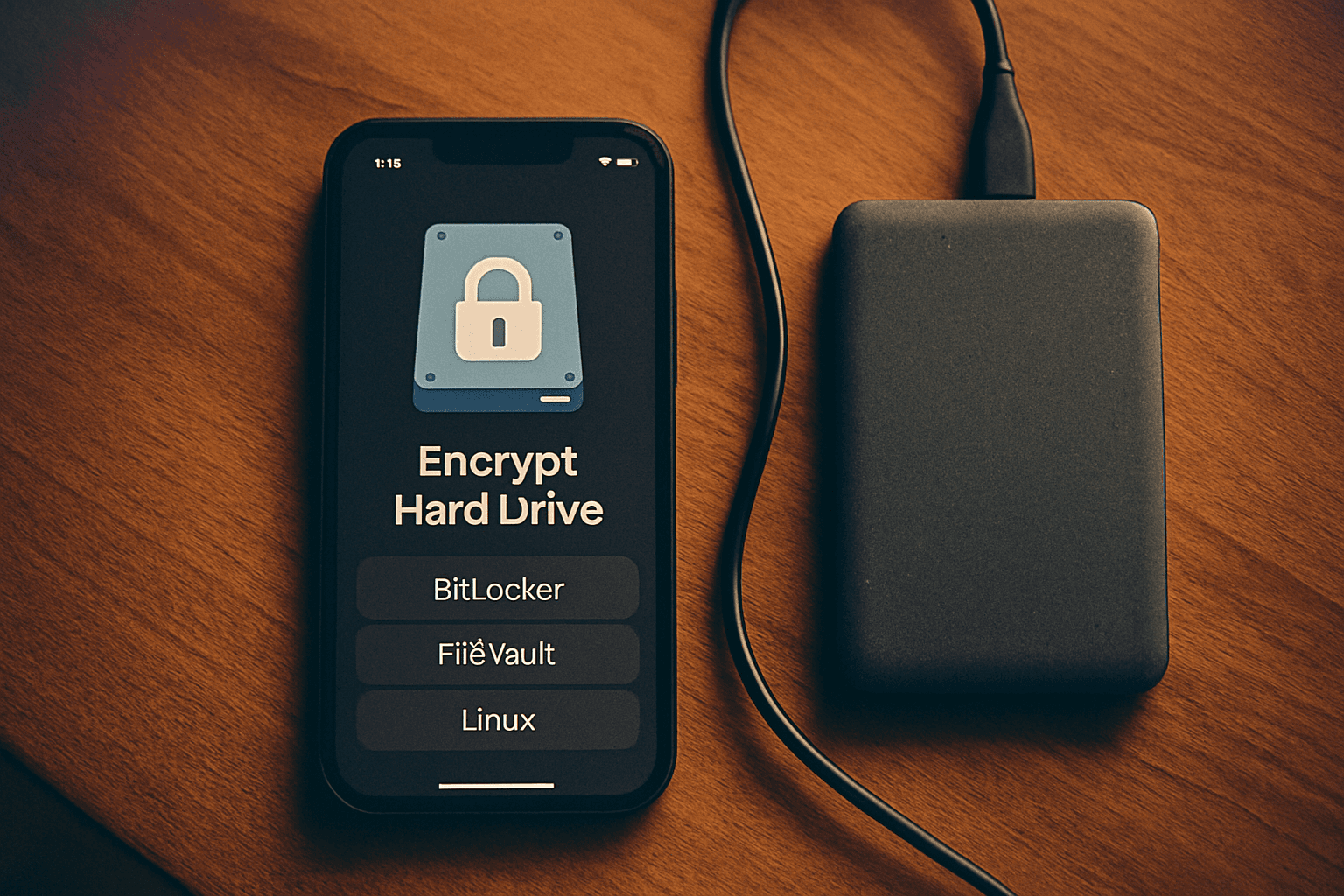
Why Encrypt Your Hard Drive?
Encryption is a way to protect your system against unauthorized access and keep your data safe and secure. Full-disk encryption ensures that even if someone physically steals your device or hard drive, they cannot access your files without the proper password or recovery key. Unlike traditional password protection, encryption scrambles all data on the drive, making it unreadable without authentication.
BitLocker for Windows
BitLocker is a full-disk encryption feature that encrypts an entire drive. It's the native encryption solution built into Windows and offers robust protection for your system and data drives.
Requirements and Compatibility
BitLocker Drive Encryption is only available on devices running Windows Pro, Enterprise, or Education editions. It isn't available on Windows Home edition. However, using BitLocker's full-disk encryption on a system drive generally requires a computer with a Trusted Platform Module (TPM) on your PC's motherboard. This chip generates and stores the encryption keys that BitLocker uses.
If your PC doesn't have a TPM, you can use Group Policy to enable using BitLocker without a TPM. It's a bit less secure, but still more secure than not using encryption at all.
How to Enable BitLocker
The process is straightforward:
- Sign in to Windows with an administrator account.
- From Start, type BitLocker and select Manage BitLocker from the list of results.
- To enable encryption, select the option Turn on BitLocker.
- Select an unlock option and back up the recovery key.
- The drive will begin the encryption process. This can take some time to complete, but you can continue to use your device while it progresses.
When prompted, you'll choose an encryption scope. Encrypt used disk space only is the faster method, and best for new PCs and new drives. Encrypt entire drive is better for PCs and drives already in use, but it takes longer.
Save Your Recovery Key
BitLocker will generate a 48-digit recovery key that can unlock the drive if you forget your password. You'll get options to save it to your Microsoft account, save to a file, or print it. Do not skip this step—you'll need this key if your password is ever lost or compromised.
FileVault for macOS
FileVault is Apple's full-disk encryption feature for macOS. It protects the contents of your startup disk by requiring a password (or recovery key) before the system will boot.
Enabling FileVault
Enabling FileVault is simple, and most new Macs may even prompt you to turn it on during the initial setup. If not, you can activate it manually by following these steps:
- Click the Apple Menu and select System Settings (or System Preferences on older macOS versions).
- In the sidebar, click Privacy & Security.
- Scroll down until you see the FileVault section.
- Click Turn On.
- You will be prompted to enter your administrator password.
Choose how you want to recover your disk if you forget your password: Allow my iCloud account to unlock my disk (consumer default) or Create a recovery key and do not use my iCloud account (recommended for business).
If you selected the local recovery key, write it down and store it somewhere safe — not on the Mac itself.
Automatic Encryption on Apple Silicon
Apple devices with silicon or an Apple T2 Security Chip have data encrypted automatically. Newer Macs handle much of the encryption process transparently, though you should still enable FileVault through System Settings to ensure full compliance and control.
Linux: LUKS and dm-crypt
Linux users have access to professional-grade encryption tools. For most Linux users, disk encryption through dm-crypt and LUKS2 is the default.
Understanding LUKS and dm-crypt
Linux Unified Key Setup (LUKS) is a specification for block device encryption. It establishes an on-disk format for the data, as well as a passphrase/key management policy. LUKS uses the kernel device mapper subsystem via the dm-crypt module. This arrangement provides a low-level mapping that handles encryption and decryption of the device's data. User-level operations, such as creating and accessing encrypted devices, are accomplished through the use of the cryptsetup utility.
It's built into Ubuntu, Fedora, and Debian installers and works reliably across laptops and servers. During installation on these distributions, you typically have the option to enable full-disk encryption, which automatically configures LUKS.
Key Strength and Flexibility
LUKS supports various encryption algorithms and cipher modes, offering flexibility to choose the desired level of security and performance. The header containing metadata includes the cipher algorithm, the key derivation function (KDF) configuration, and up to 32 key slots. Each slot holds an independently encrypted copy of the master key, encrypted with a derived key from a user passphrase (or a keyfile). This allows multiple passphrases or keys to unlock the same volume - useful for a recovery key alongside a daily passphrase.
Performance Impact
On a modern NVMe SSD with a CPU that supports AES-NI hardware instructions (all x86-64 processors since approximately 2010), AES-XTS-512 through dm-crypt adds approximately 2-8% overhead for sequential workloads. Random 4K I/O overhead can be higher - up to 10-15% on some workloads.
VeraCrypt: Cross-Platform Encryption
For users who need encryption across multiple operating systems or on Windows Home edition, VeraCrypt is a free open-source tool for Windows, macOS, and Linux, to create an AES-encrypted volume that requires a password to mount and access.
Key Differences from Platform-Native Tools
Choose VeraCrypt when you move between Windows, macOS, and Linux, when you run Windows 11 Home and do not want to pay for a Pro upgrade just to get full-disk encryption, or when you specifically need a portable encrypted container you can carry.
Important Limitation
VeraCrypt doesn't have recovery keys. The password (and optionally keyfiles) are the only way to decrypt the volume. If you forget the password and don't have the keyfiles, the data is permanently inaccessible. This makes password management critical for VeraCrypt users.
Basic Setup
Click System > Encrypt System Partition/Drive in the VeraCrypt window to get started. Alternatively, a container is a single encrypted file that behaves like a virtual disk once mounted, the gentlest way to learn VeraCrypt before touching a full partition. Open VeraCrypt, click Create Volume, and choose Create an encrypted file container.
Critical: Managing Recovery Keys and Passwords
Your recovery key is the master key to your encrypted data. Losing both your password and recovery key means your data is gone forever.
Best Practices for Key Storage
- Save to your Microsoft account (for BitLocker). This is the easiest backup and it syncs to the cloud. As long as you can log into your Microsoft account, you can retrieve it.
- Print it out and store it in a fireproof safe, filing cabinet, or bank safe deposit box. Not in your laptop bag.
- Save it in a password manager like 1Password, Bitwarden, or LastPass. Store the recovery key as a secure note.
- Give a copy to someone you trust. A spouse, business partner, or attorney. Someone who can access the key if something happens to you.
The 3-2-1 Backup Rule
The 3-2-1 Backup Rule is the bedrock of data resilience. Maintain 3 copies of your important data, on 2 different types of storage media, with at least 1 copy located off site (physically separate).
Common Mistakes to Avoid
Never store the recovery key on the same drive it protects. Also, while BitLocker encrypts in place (it doesn't erase data), any power interruption or error during encryption could corrupt the drive. Always have a backup before encrypting.
Conclusion
Full-disk encryption is no longer optional for anyone handling sensitive data. Whether you choose BitLocker, FileVault, LUKS, or VeraCrypt, the key to success is enabling encryption now and securely storing your recovery keys. Modern encryption tools integrate seamlessly into your workflow, adding minimal performance overhead while providing maximum protection against unauthorized access.