
How to Protect Privacy on Public Wi-Fi: Complete Security Guide
Why Public Wi-Fi Is Risky
Public Wi-Fi networks offer convenient internet access at cafes, airports, hotels, and countless other locations. But that convenience comes with real security risks. Public Wi-Fi security is typically very poor, with unsecured and unencrypted connections that hackers can interfere with.
Man-in-the-middle (MITM) attacks involve an attacker placing themselves between your device and the Wi-Fi router to intercept the flow of data. MITM attacks account for 19% of successful cyberattacks in 2024. Beyond interception, cybercriminals set up bogus public Wi-Fi hotspots to break into Wi-Fi networks, laptops, and Android devices—also called evil twin attacks, these malicious hotspots appear like legitimate sources of free Wi-Fi.
36% of Americans suspect they had a security incident after using public Wi-Fi—in fact, 19% were certain they did. The problem is fundamental: many public Wi-Fi networks lack security measures to prevent hijacking and protect users from criminal activity.
Use a VPN (Virtual Private Network)
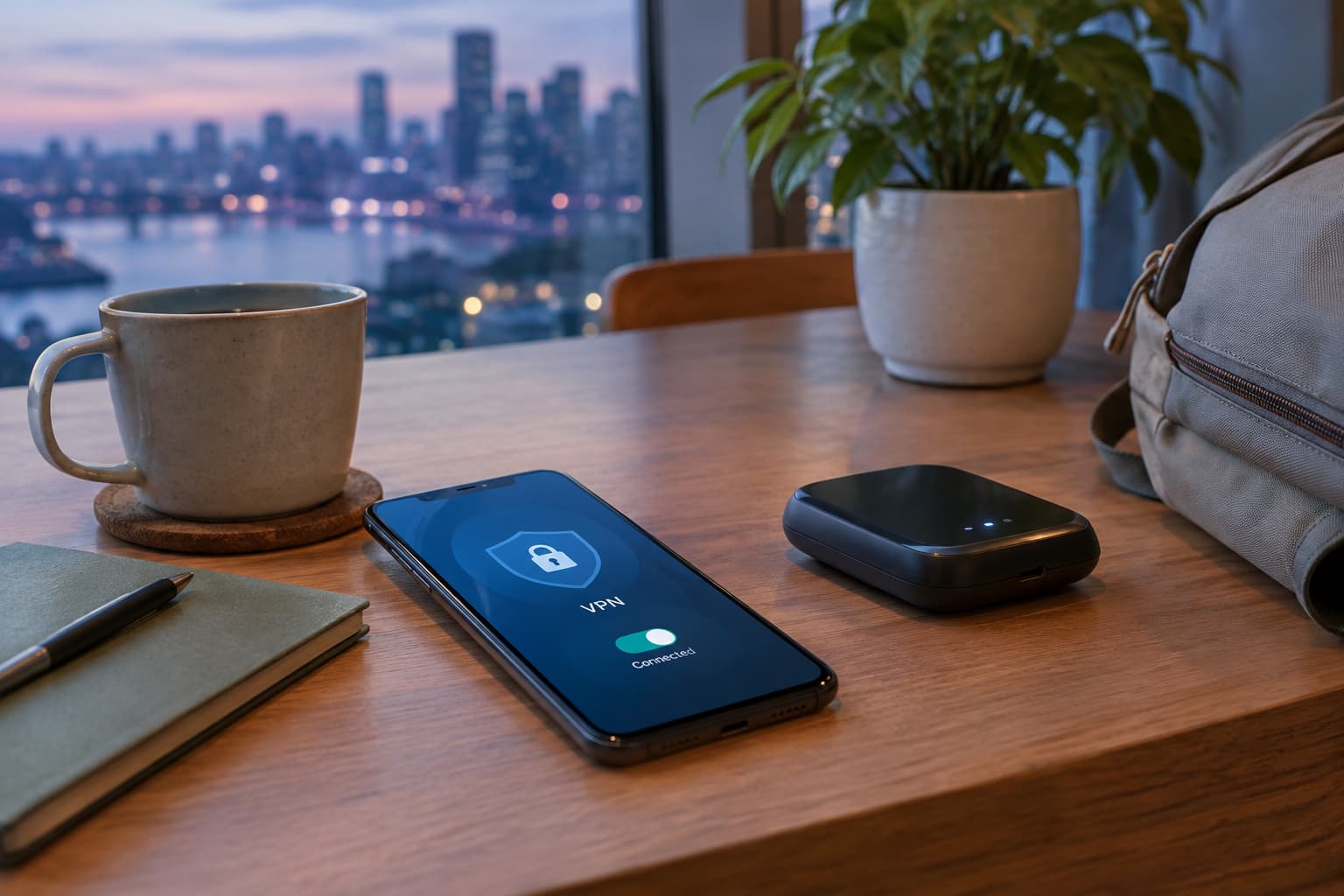
The most effective single step you can take is to use a VPN. A VPN (virtual private network) creates a secure, encrypted connection between your device and a VPN server, which helps change your IP address, protect your personal data, and prevent hackers or network owners from seeing your online activity.
VPNs improve public Wi-Fi security by hiding the user's original IP address and encrypting their online traffic. A VPN secures public Wi-Fi by encrypting your internet traffic, making it unreadable to anyone attempting to intercept it on the same network. While it significantly reduces the risk of data theft and surveillance, a VPN does not protect against all threats, such as phishing attacks, malware, or compromised websites.
Setting Up a VPN
To secure public Wi-Fi with a VPN, you need to install a trusted VPN app, enable it before connecting to the network, and configure key security settings. Set the VPN app to automatically trigger on untrusted or public Wi-Fi networks, which ensures the VPN shields your connection the exact moment your device joins Wi-Fi.
Stick to HTTPS Websites
Not all encryption requires a VPN. It's good practice to browse only websites that have an SSL certificate—websites with addresses starting with HTTPS are encrypted, adding an extra layer of security to help protect your browsing activity.
HTTPS protects against man-in-the-middle attacks, and the bidirectional block cipher encryption of communications between a client and server protects the communications against eavesdropping and tampering. However, there's an important caveat: HTTPS does not encrypt all your data, like DNS queries. This is why using HTTPS alongside a VPN provides better overall protection than either alone.
Disable Auto-Connect on Your Device
One of the easiest security wins is disabling automatic Wi-Fi connection. Even the NSA has advised users to disable automatic connections to public networks, calling the setting a real-world risk.
Users should always check what network they are connected to. With mobile phones, they should shut off the Wi-Fi auto-connect feature when moving around locally to prevent their devices from automatically being connected to a malicious network.
How to Disable Auto-Join
- On iPhone: Go to Settings > Wi-Fi > (network name) > Auto-Join → Toggle off
- On Android: Navigate to Settings > Network & Internet > Wi-Fi > Wi-Fi preferences → Disable "Connect to open networks"
- On laptops: Disable auto-connect and take the extra two seconds to manually select networks, and forget public networks from your saved list when you leave
Enable Two-Factor Authentication
Enabling two-factor authentication (2FA) significantly strengthens the security of your online accounts by requiring a second form of verification beyond just your password. Two-factor authentication adds an extra layer of security to the login process by requiring users to enter both a username and password, as well as a code that is generated by an authenticator app.
Standard text message (SMS) codes are vulnerable to SIM swapping and interception. Instead, use Passkeys or FIDO2 Hardware Keys (like a YubiKey). This creates a barrier even if someone intercepts your password.
Verify the Network Name Before Connecting
The main risk to watch for is connecting to fake networks set up by scammers, so verify the correct network name with staff before connecting. Evil twin attacks rely on you assuming the network name is legitimate. Confirming with staff takes ten seconds and eliminates that attack vector entirely.
Malicious hotspots often have unassuming names like "free WiFi" or "Guest WiFi." When in doubt, ask an employee for the exact network name.
Avoid Sensitive Transactions on Public Wi-Fi
The safest approach for critical activities is to skip them on public networks entirely. Never access banking, investment accounts, financial transactions, work email, corporate VPNs, healthcare portals, tax preparation, or password changes on public Wi-Fi without protection.
If you must conduct sensitive business, your smartphone's 4G or 5G cellular connection is significantly more secure than any public Wi-Fi. Better yet, create a mobile hotspot from your phone to provide a secure connection for your laptop.
Forget Networks After Use
Disable "Auto-Join" in your Wi-Fi settings and "Forget" public networks as soon as you are done using them. This prevents your device from automatically reconnecting to the same network in the future, which could be dangerous if you encounter a malicious network with the same name elsewhere.
Disable File Sharing and Bluetooth
Turn off file sharing, AirDrop visibility, nearby device discovery, and printer sharing when you are away from home or the office. These features create unnecessary entry points for attackers on unsecured networks.
Keep Your Software Updated
If you rely on public Wi-Fi often, treat patching as a core defense rather than an occasional maintenance task. Security updates patch vulnerabilities that attackers actively exploit on public networks.
Take a Layered Approach
No single security measure is foolproof. By adopting a few simple habits—such as using a VPN and mobile data for sensitive activities, disabling automatic connections, keeping your software up to date, and using two-factor authentication (2FA) wisely—most risks can be reduced to a manageable level.
The key is combining multiple layers of protection: a VPN for encryption, HTTPS websites, two-factor authentication for account access, and careful behavior when connected. This layered defense significantly reduces your exposure to the threats that public Wi-Fi networks present.
Public Wi-Fi will always carry some inherent risk, but with these protections in place, you can browse and work safely on unsecured networks without needlessly exposing your privacy and personal data.