
How to Reduce Input Lag on Gaming Monitor: 10 Key Settings
Understanding What Input Lag Actually Is
Input lag refers to the total time it takes for an action to appear on your display after you trigger it. This process involves several steps: your peripheral (mouse or keyboard) sends a signal, your PC processes that signal, the graphics card renders the frame, and finally, the monitor displays the image.
It's crucial to distinguish input lag from response time. Input lag refers to the delay between user input and the monitor's response, while response time focuses on the monitor's ability to change pixel colors or brightness in response to a signal change.
Enable Game Mode First
This single setting often yields the biggest improvement. Every gaming monitor and TV has a Game Mode that disables post-processing (smoothing, noise reduction, color enhancement). This processing adds 20–50ms of lag. Game Mode bypasses it.
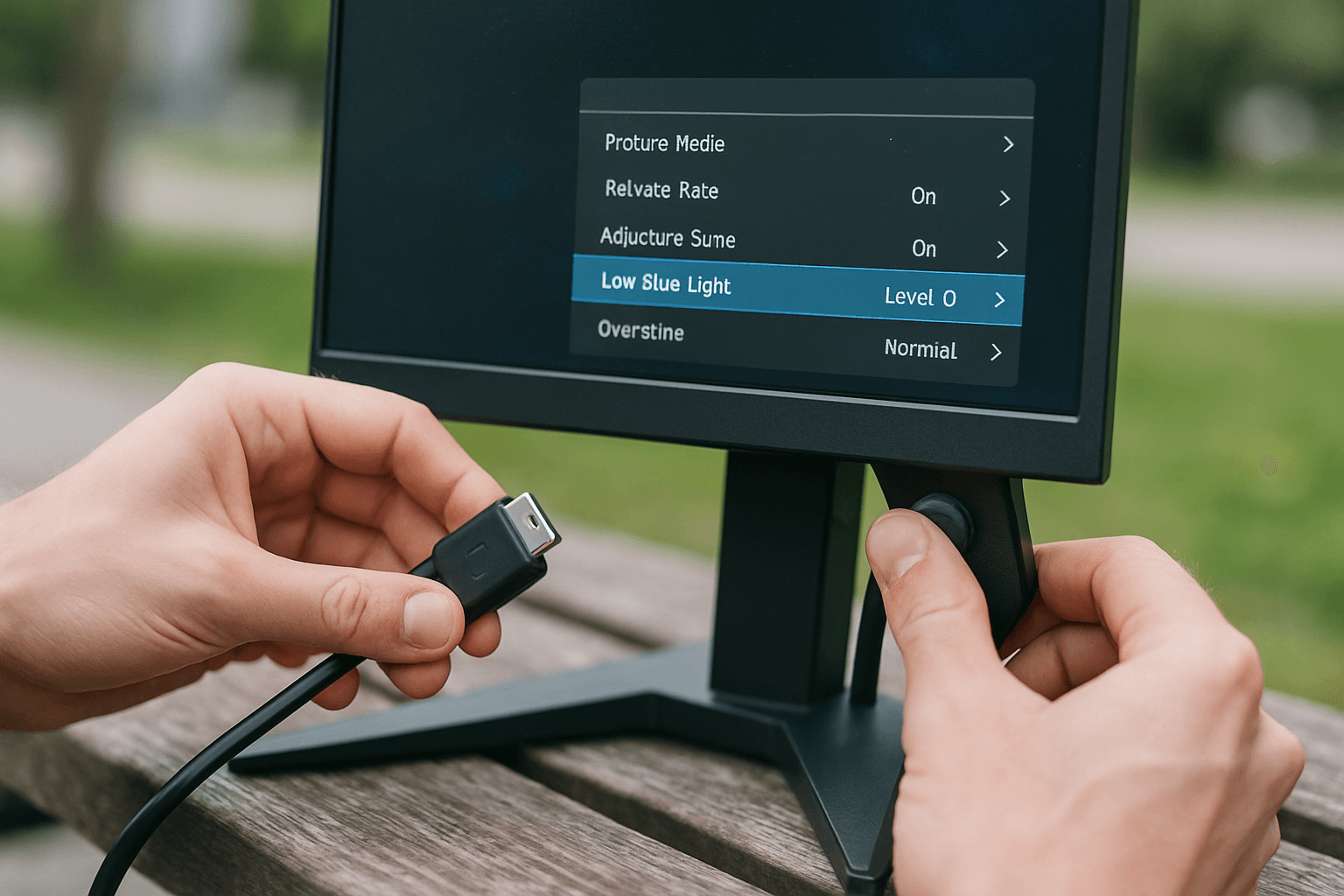
Look for this in your monitor's on-screen display (OSD) menu—it's often one of the preset options available. If you're playing on a monitor instead of a TV, check your monitor settings for "Low Input Lag" option or a similar feature that will aid with the lag.
Maximize Your Monitor's Refresh Rate
Higher refresh rate directly lowers lag. A 60Hz monitor has a minimum frame display time of 16.7ms. A 144Hz monitor: 6.9ms. A 240Hz monitor: 4.2ms. Setting your monitor to its maximum supported refresh rate directly reduces the time each frame waits to display.
Windows often defaults new monitors to 60 Hz. Go to Settings → System → Display → Advanced display and select the highest refresh rate your monitor supports.
Disable V-Sync or Use Adaptive Sync
V-Sync adds up to one full frame of input lag. If you have a G-Sync or FreeSync monitor, use that instead—it eliminates screen tearing without the lag penalty.
To reduce input lag, disable V-Sync in your game settings or graphics card control panel, or use a fast-sync option if available. If you use V-Sync off without adaptive sync, cap your frame rate slightly below your monitor's refresh rate to maintain smooth gameplay while minimizing tearing artifacts.
Configure GPU Low-Latency Settings
Graphics card control panels offer latency-focused features. In NVIDIA Control Panel, set "Low Latency Mode" to On (limits the queue to 1 frame) or Ultra (submits frames just in time). In AMD Radeon Software, enable "Anti-Lag" in the per-game profile.
These settings reduce the render queue depth, directly cutting down how long frames wait before the GPU sends them to your display.
Reduce Unnecessary Image Processing
Disable motion smoothing, noise reduction, dynamic contrast, strobing, and heavy enhancement modes. Post-processing like noise reduction, dynamic contrast, and motion smoothing can add 5–15 ms of delay.
Test HDR separately and keep it only if the monitor remains in a low-latency picture path.
Tune Overdrive Settings Carefully
Overdrive settings affect motion clarity by speeding up pixel transitions. Overdrive applies extra voltage to LCD pixels so they change shades faster. Monitor brands may label it as Overdrive, Response Time, Motion Tuning, Motion Acceleration, Fast, Faster, Extreme, or similar terms. The goal is to reduce the soft trails that appear when pixels lag behind motion.
However, medium overdrive settings usually deliver the best balance because they reduce blur without pushing pixels hard enough to overshoot badly. Excessive overdrive can create "inverse ghosting"—bright halos around moving objects that make aiming harder, not easier.
Use the Right Cable Connection
The cable type itself matters less than you might think. When comparing HDMI and DisplayPort at the same resolution and refresh rate, there's virtually no measurable difference in input lag. The real latency differences usually come from the display's internal processing or game mode settings.
DisplayPort generally has slightly lower latency than HDMI, especially at higher refresh rates. HDMI 2.0 caps at 4K/60 Hz or 1440p/144 Hz, while DisplayPort 1.4 handles 4K/120 Hz natively. If your GPU and monitor both support DisplayPort, use it.
Consider Motion Blur Reduction
Motion blur reduction technologies can help competitive play. Properly implemented motion blur reduction technologies typically do not introduce significant input lag. Some strobing technologies add between 1–3ms average at 240Hz.
However, motion blur reduction can cause input lag spikes when a monitor's strobe timing expects perfectly paced frames but the game engine delivers uneven frames, buffered frames, or unstable sync behavior. This feature works best when your frame rate matches or exceeds your refresh rate consistently.
Optimize Your Peripherals
If you're using a controller and are having issues with input lag, consider getting a wired controller instead of wireless. Wireless connections typically introduce more latency than wired connections. Most wireless gaming hardware is designed for low-latency use, but lag may increase due to low batteries or a spotty connection.
Close Background Programs
Background load increases frame time variance, which feels like input lag. Debloating Windows helps here. Overlays, background apps, and browser windows competing for GPU resources all contribute to inconsistent frame pacing, which manifests as unpredictable input lag spikes.
What Acceptable Input Lag Looks Like
Baseline expectations vary by display type. Many new, gaming-ready displays have an input latency of 10–15 milliseconds. 41–70 ms is average. This is still within acceptable lag parameters, assuming this is the only lag being experienced. Anything above 70 ms is undesirable and would diminish the gaming experience, especially if you're playing online or competing.
The Bigger Picture
Input lag isn't a single monitor problem—it's a complete system issue. The game engine receives the input and calculates the new game state (varies by CPU load). The frame waits in the GPU driver's pre-render queue (0–60+ ms depending on queue depth). The GPU draws the frame (depends on frame time). Your monitor receives and processes the signal (1–15 ms depending on panel type and overdrive).
Input lag reduction provides a greater competitive advantage than a high refresh rate alone. Optimizing the entire latency chain, from peripherals to sync settings, is what truly improves your in-game response time and performance.
Start with Game Mode and refresh rate, disable V-Sync, enable GPU low-latency features, then dial in overdrive and motion processing to your preference. Most improvements come from these core settings, not expensive hardware upgrades.