
How to Set Up a VPN on Your Router: Complete Guide
Why Set Up VPN on Your Router?
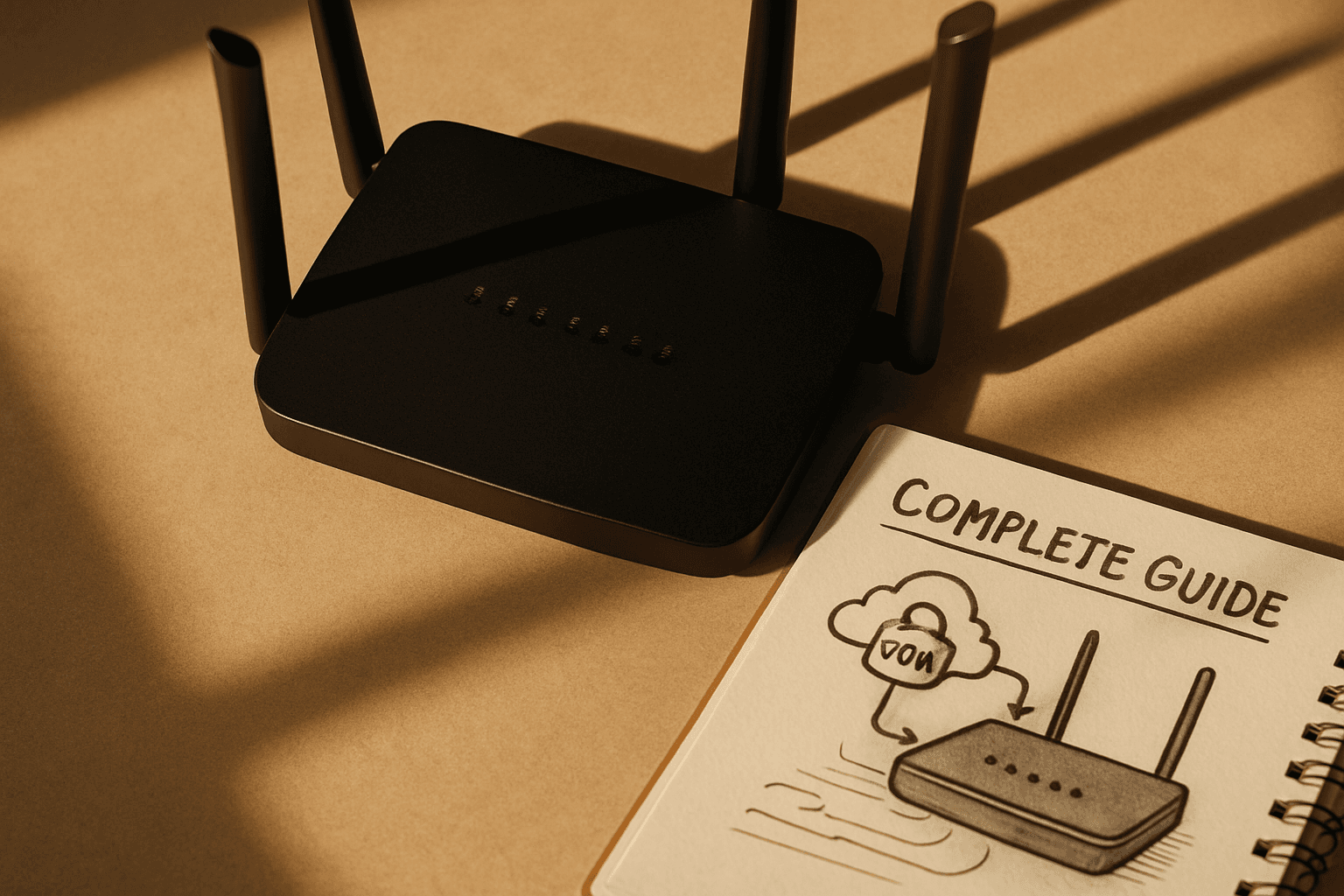
A VPN on your router provides network-wide security and protects devices that don't support VPN software on their own, such as smart home devices and gaming consoles. The main advantages of using a VPN on your router include always-on protection, coverage for all devices on your network, and easier management for multiple devices.
However, there are trade-offs to consider. It can be harder to manage settings, and encryption strength depends on your router's capabilities. Additionally, if something goes wrong, diagnosing issues on a router-level VPN can be trickier than on a single app.
Check Your Router Compatibility First
Not every router supports VPN functionality. Consumer routers are routers you can buy in stores. The majority of these routers should work with VPNs but may need some setting up in order to establish a VPN connection for the first time. However, ISP-issued routers are given to customers by ISPs, and a lot of the time, such routers are not VPN-ready, and some are even designed to restrict or block VPN usage.
Newer routers support VPN protocols right out of the box, but older models need a firmware update or replacement firmware altogether. Your best starting point for specifics is to look at both your VPN company's website and the manual that came with your router.
Choose Your VPN Protocol
Most modern routers support multiple VPN protocols. TP-Link routers support OpenVPN, WireGuard, PPTP and L2TP/IPsec connections and are compatible with many VPN providers. When deciding between protocols, the choice matters for performance and ease of setup. A misconfigured OpenVPN protocol can hinder your network performance, which is why we don't recommend it for people new to VPNs. Instead, WireGuard is the best choice for newbies because it's incredibly easy to set up, doesn't require much customization, and will work for most people's needs.
WireGuard is faster than OpenVPN while maintaining strong security.
Select a Compatible VPN Provider
The first thing you need to do is select a VPN that supports router connections. Not all VPN services provide router configuration files or setup instructions. Providers such as NordVPN, Surfshark, or ExpressVPN offer router setup guides and configuration files.
Step-by-Step Setup Process
The installation process varies for different types of routers but they all follow the same basic steps. Here's the general procedure:
1. Access Your Router's Admin Panel
Find your router's IP address (usually 192.168.1.1 or 192.168.0.1) and enter it into your browser's address bar to access the admin panel. Consult the manual to determine the default username and password if needed.
2. Locate the VPN Client Section
Once logged in, look for a VPN, Advanced, or Connectivity tab. Choose the option for a VPN client, not a VPN server. Your router will be connecting to a separate VPN service, not hosting its own service.
3. Upload Configuration Files
Your VPN provider will supply configuration files for your router. Enter your VPN username and password if your provider requires them (these fields are optional). Then click Browse to upload the configuration file provided by your VPN provider.
4. Configure VPN Settings
Enter a description for the connection and choose your VPN type from the dropdown. The router supports OpenVPN, PPTP, and L2TP/IPSec. Fill in the fields based on your protocol, then click Save.
5. Enable and Test the Connection
Visit a site like What is my IP to confirm your VPN is active and your IP address has changed.
Understanding Performance and Speed Impact
One question many users have is whether a router VPN will slow their connection. Using a VPN will cause slightly slower speeds due to encryption overhead. Using servers close to your location or a high-performance VPN minimizes this impact.
For most households, the impact is manageable. For most households in the United States using cable or fiber connections, the internet slowdown with a VPN is minor and often unnoticeable during daily use. However, if you've configured the VPN directly on your router rather than on an individual device, so it's encrypting traffic for your entire network at once, whether this creates a noticeable slowdown depends heavily on your router's processing power.
Consider upgrading to a router with at least a dual-core 1.5GHz processor if you experience slowdowns with multiple devices.
Custom Firmware Options
If your router doesn't have built-in VPN support, you have alternatives. ISP-issued routers that don't support VPN setups can typically be flashed with compatible firmware like DD-WRT or Tomato, but doing so might breach terms of service or agreements.
DD-WRT is the most common choice for custom router firmware. It adds impressive features to your router like VPN support, QoS, and wake-on-LAN. If you're an advanced user, this is the way to go. OpenWrt is the progenitor of custom firmware and it's had time to mature and become a compelling option for your router. It might be a bit confusing to set up, but it has loads of features to increase the capability of your router.
Optimizing Your Router VPN Setup
After installation, a few tweaks can improve performance:
- Select nearby servers. Choose the closest server to you that your VPN offers. If that doesn't help, test a couple of nearby servers.
- Keep firmware updated. Firmware updates matter. Manufacturers release updates to fix bugs, improve security, and boost performance. Always suggest keeping router firmware up to date.
- Restart regularly. Routers have a big impact on VPN performance. Over time, they can slow down from memory leaks or old firmware. Restarting the router clears out temporary problems and usually gets things running smoother.
Final Thoughts
Setting up a VPN on your home router takes some initial effort, but setup takes 15–30 minutes on compatible routers. Once configured, you gain the convenience of network-wide protection without managing individual device settings. Follow your VPN provider's specific instructions for your router model, verify the connection is active, and you'll have all your home devices protected automatically.