
How to Set Up AI Code Suggestions in VS Code & JetBrains IDEs
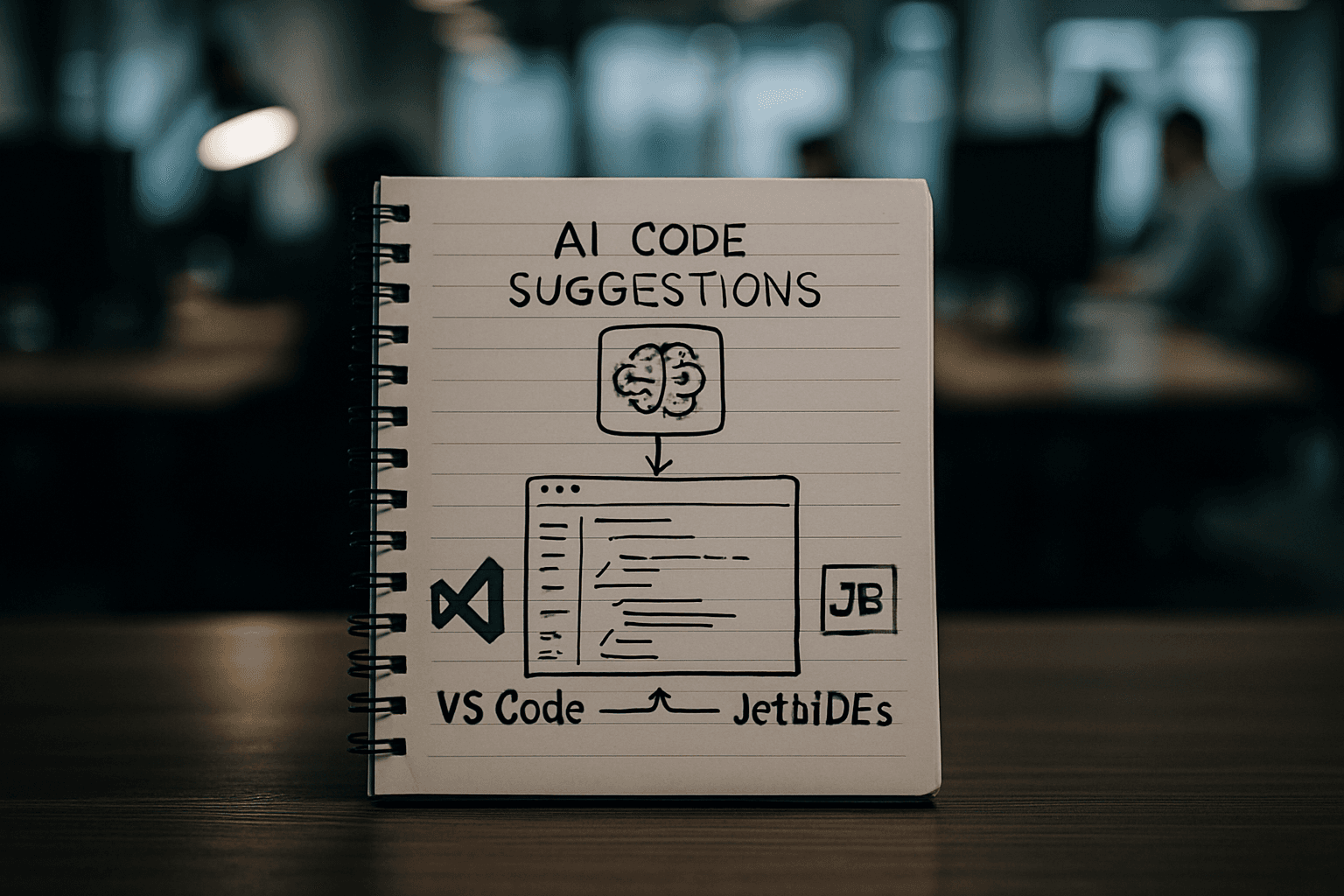
AI-powered code suggestions have transformed how developers write code, slashing repetitive typing and helping catch mistakes before they ship. GitHub Copilot in VS Code provides AI-powered inline suggestions that complete your code, comments, tests, and more as you type. For JetBrains IDE users, similar capabilities exist through built-in AI assistants and integrations.
If you're ready to set up AI code suggestions in your development environment, this guide walks you through both platforms with clear, actionable steps.
Getting Started with GitHub Copilot in VS Code
Prerequisites and System Requirements
Copilot runs inside VS Code, so if VS Code runs smoothly on your machine, Copilot will too. No additional system requirements beyond what VS Code itself needs. Works on macOS, Windows, and Linux.
Installation Steps
The setup process is straightforward. Open VS Code and navigate to the Extensions panel by pressing Cmd+Shift+X (Mac) or Ctrl+Shift+X (Windows/Linux). Search for "GitHub Copilot" and click Install.
On recent VS Code versions the Copilot extensions ship built-in, so you may just need to enable AI features. Then sign in with your GitHub account when prompted.
Choosing a Plan
GitHub offers tiered options to match different needs. If you don't have a Copilot subscription yet, you'll be signed up for the Copilot Free plan and get a monthly allowance of inline suggestions and AI credits. The free version allows developers up to 2,000 code completions per month and 50 chat messages in Copilot Chat, supporting multi-file edits and offers access to a third-party ecosystem for enhanced code suggestions.
As of mid 2026, GitHub offers Copilot Free, Pro at $10 a month, Pro+ at $39, Max at $100, Business at $19 per seat, and Enterprise at $39 per seat.
Accepting and Rejecting Suggestions
Once installed, Copilot appears as dimmed ghost text suggestions at your current cursor location as you type. Managing these suggestions uses simple keyboard shortcuts:
Accept a suggestion by pressing the Tab key. To partially accept a suggestion, use the ⌘→ (Windows, Linux Ctrl+Right) keyboard shortcut to accept either the next word of a suggestion, or the next line. Press Esc key to reject a suggestion.
To cycle through multiple suggestions, press Alt+] for next suggestion and Alt+[ for the previous one (or Option+] and Option+[ on Mac).
Setting Up AI Code Suggestions in JetBrains IDEs
JetBrains IDEs offer built-in AI assistance through their AI Assistant feature, available in IntelliJ IDEA, PyCharm, WebStorm, and other JetBrains products.
Activating AI Assistant
Simply open a project in your preferred JetBrains IDE version 2024.2, click the AI icon on the right toolbar to initiate the installation, and follow the instructions to enable it.
Authentication and Setup
After installation, you'll choose how to authenticate. After the installation, you will be prompted to select the authentication method. In the prompt, select API Key. Alternatively, select JetBrains. Complete sign-in with your JetBrains Account if required. After completing these steps, you can start using the agent.
AI Assistant can be set up in different ways to match your needs. You can use it with a JetBrains AI subscription, provide your own API keys, authorize integrated agents with provider accounts, or install external coding agents.
Configuring Your AI Provider
If you prefer to bring your own API key, use the Providers & API keys page to configure access to models from third-party AI providers and locally hosted models and to manage authorization for integrated agents. Supported options include:
- Anthropic – provides the Claude family of models.
- Google – provides the Gemini family of models, available either through the Gemini API (using an API key) or through Google Vertex AI.
- OpenAI – offers GPT, o-series, and other general-purpose models.
Using AI Code Completions Once Installed
In VS Code
Open a file in a programming language of your choice and start typing. You should see inline suggestions from Copilot as you type. Inline suggestions work with a broad range of programming languages and frameworks.
For more complex tasks, you can use inline chat. Chat with Copilot inline in your code, Copilot will generate code right at your cursor position. This also works in the terminal, if you'd like guidance on how to do something there.
In JetBrains IDEs
Open any source file and start typing in the editor to trigger code completion suggestions. Cloud completion powered by AI Assistant can autocomplete single lines, blocks of code, and even entire functions in real time based on the project context. By default, the cloud code completion feature relies on Mellum, a proprietary large language model developed by JetBrains and specifically optimized for this purpose.
Advanced Configuration Tips
VS Code Settings
You can enable or disable inline suggestions either for all languages or for specific languages only. To enable or disable inline suggestions, select the Copilot menu in the Status Bar, and then check or uncheck the options to enable or disable inline suggestions.
Improving Suggestion Quality
You can provide hints about what code you expect by using code comments. For example, you could specify a type of algorithm or concept to use (for example, "use recursion" or "use a singleton pattern"), or which methods and properties to add to a class.
Privacy Considerations
If you're concerned about data collection in the free plan, note that if you're on the free individual plan and don't want your code used to improve Copilot models, go to github.com → Settings → Copilot → uncheck "Allow GitHub to use my code snippets for product improvements."
Troubleshooting Common Issues
Suggestions not appearing: Ensure the extensions are installed and enabled. In VS Code, check that you're signed into GitHub. In JetBrains, verify your AI Assistant settings under Settings | Tools | AI Assistant.
Suggestions seem irrelevant: Provide hints about what code you expect by using code comments to give the AI better context about your intent.
Authentication issues: Navigate to Settings | Tools | AI Assistant | Providers & API keys. In the JetBrains AI section, click Log out. After that, you can configure other authentication options to keep using AI Assistant.
Conclusion
Setting up AI code suggestions takes just a few minutes but pays dividends in productivity. Whether you choose GitHub Copilot in VS Code or JetBrains' built-in AI Assistant, the core workflow is the same: install, authenticate, and start typing. Both platforms support multiple models and pricing tiers, so you can find an option that matches your budget and needs. The keyboard shortcuts become second nature quickly, and within days you'll wonder how you coded without them.