
How to Set Up Smart Home Hub: Complete Beginner's Guide
Do You Actually Need a Smart Home Hub?
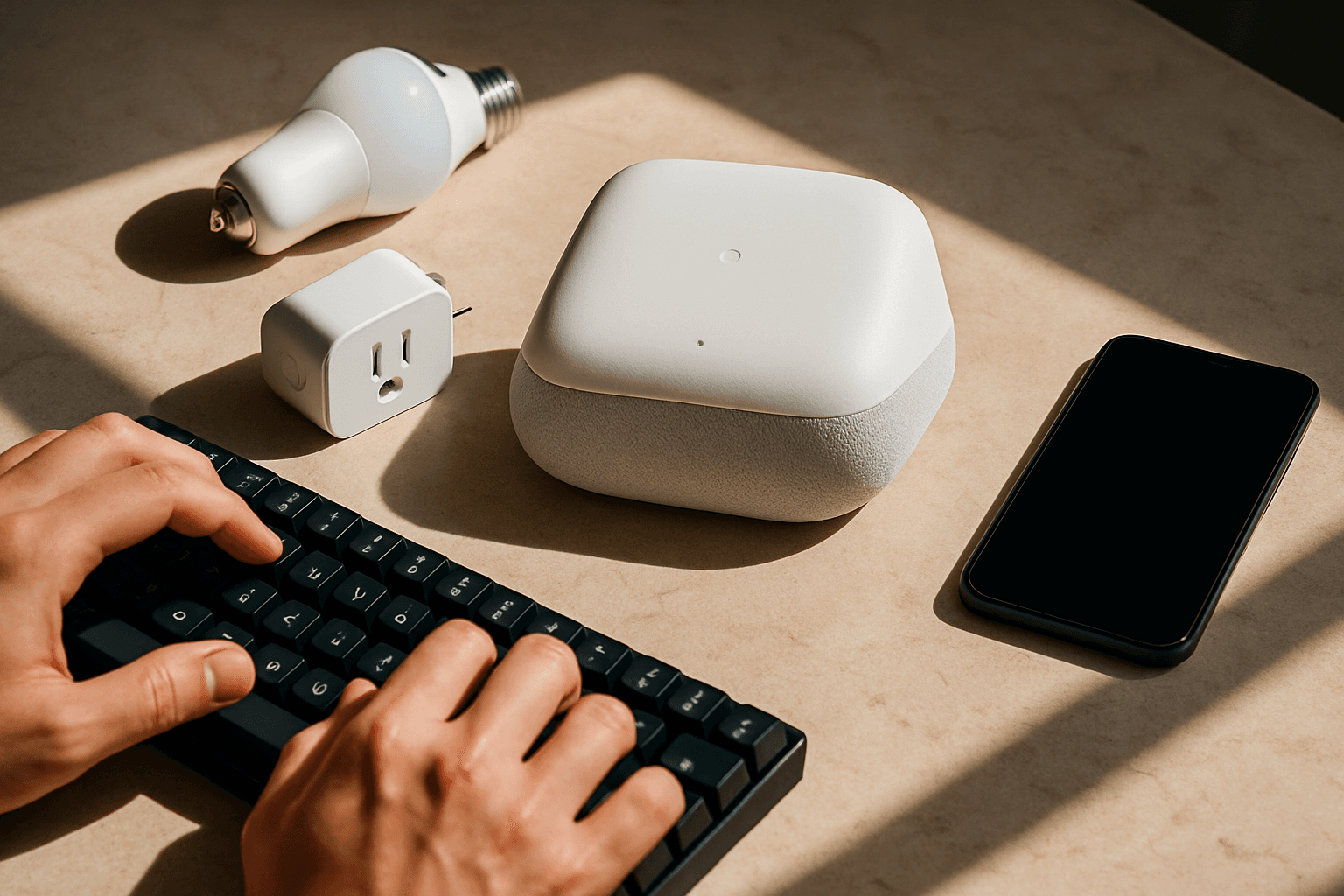
The short answer: it depends. Many devices connect directly over Wi-Fi, and a hub becomes useful once your setup grows larger. The tipping point arrives around five to seven devices—or when you want automations that span brands.
A smart home connects everyday devices to your Wi-Fi network, so you can control lights, plugs, and cameras from your phone or by voice. If you have just a couple of Wi-Fi smart plugs or a doorbell, skip the hub for now. But once you start adding devices from different brands or want reliable automations, a dedicated hub makes everything simpler.
Understanding What a Hub Does
A smart home hub is the heart of your smart home, unifying the different devices in your home into a single system and making them work together while providing a single app to control your entire home.
Here's what happens behind the scenes: Some hubs use protocols like Zigbee, Z-Wave, or Bluetooth to communicate with devices, pair compatible devices with the hub allowing them to recognize each other and share information, and when you give a command—via voice, app, or automation—the hub interprets it and instructs the relevant devices to act.
Smart hubs enable automation, such as turning lights on at sunset or locking doors when everyone leaves. Without a hub, these cross-brand automations become difficult or impossible—your Philips Hue bulbs won't talk to your Wyze sensors without a translator.
Choosing the Right Hub for Your Home
There is no single best smart home hub for every household. The best choice depends on the devices you already own, the ecosystem you prefer, and how much automation control you want.
For most beginners, consider these three main options:
The Amazon Echo Hub is the most beginner-friendly option, with its touchscreen dashboard, guided setup, and Alexa voice control making it easy for anyone to get started. The built-in Zigbee radio means you can use it with more smart devices overall.
The Google Nest Hub (Gen 2) is a pick for the best smart home hub with a smart display, and it's not too expensive and has more features than similarly priced Amazon Echo Show models.
Apple HomePod Mini is equally simple if you are already in the Apple ecosystem.
Prioritize Matter support. Matter is the industry-backed connectivity standard developed by the Connectivity Standards Alliance, with support from Apple, Amazon, Google, and Samsung, promising that any Matter-certified device will work with any Matter-compatible hub, regardless of brand. In 2026, Matter support is widespread, though not every device category is covered yet.
The latest Amazon Echo models are compatible with advanced sub-networks like Thread and connectivity protocols like Matter, meaning they will stay useful for years to come.
Pre-Setup Preparation
Before plugging in your hub, check your network:
Verify your router supports dual-band WiFi with 25Mbps minimum bandwidth. Consumer routers often choke past 30-40 connected devices. If you plan a large system, a mesh network can handle 100+ devices efficiently.
It is recommended that you place your smart home hub in the central most location in your home to have the best wireless reach around it. Keep your hub away from heavy metal objects (HVAC equipment, refrigerators, stoves, or other sources of interferences).
WiFi bands matter. Many smart devices only speak 2.4GHz. If your phone auto-connects to 5GHz during setup, pairing fails.
Step-by-Step Setup
The process varies by hub, but follows a similar pattern:
- Unbox and power on. Begin by unboxing your hub and placing it in a central location to ensure better connectivity with all your smart devices.
- Download the app. Smart home hubs are primarily controlled by app use through an Android or iOS smartphone. Download your hub's companion app.
- Scan or enter credentials. Using your mobile device's camera, scan the QR code located on the back of the hub. If necessary, tap OK to give the hub access to your smartphone camera. If you're having trouble scanning the QR code, tap "Add device by serial number" and enter the code manually.
- Connect to WiFi. If you are setting up the Hub via Wi-Fi, select your Wi-Fi network. Enter your WiFi password.
- Add devices. Once the hub is connected to your Wi-Fi network, you can start adding your smart devices. Open the app, navigate to the device pairing section, and follow the prompts to add each device.
Setup speed: With an Amazon Echo Hub, setup takes about 15 minutes if you already have an Amazon account—plug in, open the Alexa app, scan the QR code, done.
Starting Small and Expanding
Don't overwhelm yourself with dozens of devices at once. Starting with too many devices simultaneously makes troubleshooting nearly impossible when things go wrong during the initial setup phase. Begin with a few essential devices, thoroughly test each automation, and gradually expand.
Start with essential devices: smart lighting, thermostat, security cameras, and a voice assistant hub for maximum impact. Once these work reliably, add more.
Common Setup Mistakes to Avoid
Mixing incompatible protocols: The most expensive mistake is buying devices before checking protocol compatibility—Zigbee sensors won't pair with Z-Wave hubs, and Wi-Fi cameras can cripple your network if your router can't handle the bandwidth.
Ecosystem sprawl: The single most common smart home problem is ecosystem sprawl—buying a Samsung SmartThings hub for the thermostat, a Philips Hue bridge for the lights, and a Ring doorbell that lives in Amazon's cloud. Every one of those systems works in its own lane. Cross-ecosystem automations either require a third-party bridge like Home Assistant or they simply do not work.
Ignoring network placement: If your device is having connection issues, check the basics first—restart your router and your devices. If that doesn't work, ensure you've positioned your router centrally. This gives you optimal signal strength.
Automating everything at once: The temptation to automate everything at once is real, but it's a recipe for disaster—people create dozens of complex automations that conflict with each other, turning their home into an unpredictable maze.
Troubleshooting Connection Issues
If devices won't connect, follow this checklist:
- Make sure the WiFi password is correct.
- Try another area in your home that has stronger WiFi connection.
- Keep hubs away from microwaves, metal surfaces, and interference sources.
- Update your router firmware and restart both router and devices.
Security First
Set up proper network segmentation and security protocols before connecting your first smart device to prevent vulnerabilities. Use strong, unique passwords for each account. Enable two-factor authentication where possible. Update firmware and apps monthly. Keep IoT devices on a separate Wi-Fi network for added safety.
The Bottom Line
Pick your hub based on voice assistant and automation system, then build your device library on Matter-certified hardware wherever possible. That way you can switch hubs in the future without throwing out all your devices. Start small, test thoroughly, and expand gradually. A well-planned smart home saves time and frustration—a rushed one becomes a source of headaches.