
How to Set Up Smart Lighting Schedules and Scenes: Complete Guide
Understanding Scenes vs. Automations
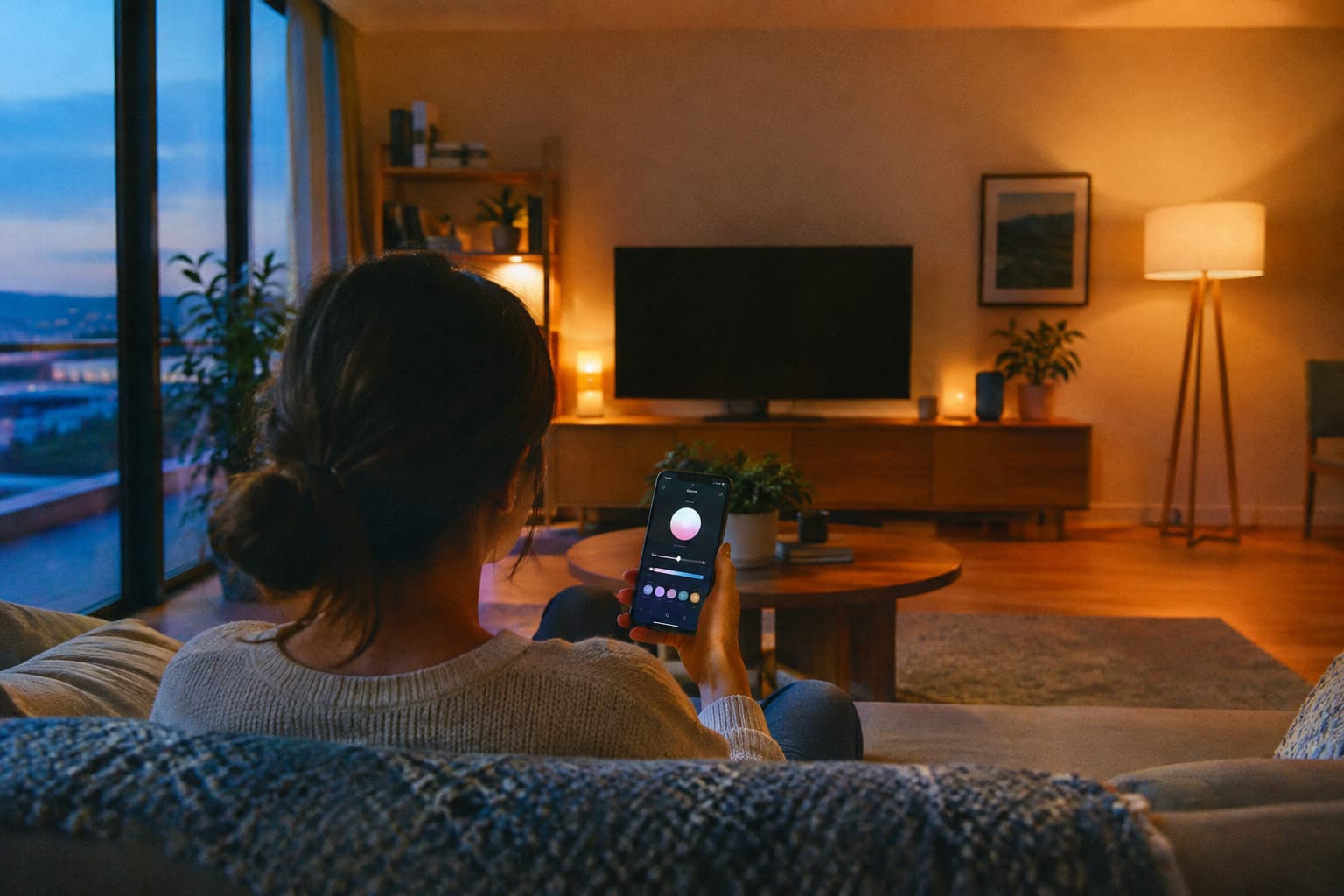
Before you start configuring, it helps to understand the difference. A scene is a preset combination of lighting settings. An automation is the trigger-and-condition logic that runs a scene or sends a lighting command.
A scene answers "What should the lights look like?" while an automation answers "Under what conditions?" A scene can activate from scheduled activation, where lighting can run a Morning scene at a set time or an Evening scene near sunset.
Getting Your Hardware Ready
Start by choosing compatible devices. Philips Hue offers extensive scene customization with colour-changing capabilities and seamless integration with major smart home platforms. TP-Link Kasa delivers reliable smart lighting with straightforward scene setup and energy monitoring features.
Ensure your smart bulbs are connected to your home Wi-Fi network. Follow the instructions on the bulb packaging to set up the initial connection using your smartphone app.
Naming and Organization
Give each light a useful name. Create or choose a room, such as "Living Room." Assign each matching light to that room. Clear naming prevents confusion when setting up complex scenes across multiple rooms.
Creating Your First Scenes
Start with simple scenes using 2-3 lights before creating complex whole-home configurations. Select or create lighting scenes in your smart home app. Common scenes include "Relax," "Wake Up," or "Party." Name the scene and choose colors, brightness, and transitions.
Color Temperature Guidelines
Understanding color temperature is essential for creating scenes that match your intended mood. Measured in Kelvin (K) on a scale running from approximately 2200K (extra-warm candlelight) through 6500K (cool overcast daylight), color temperature affects mood, sleep quality, circadian rhythm, productivity, and how accurately colors appear under the light.
Consider these general guidelines:
- 2700K – Warm White – Intimate, Cozy, Personal
- 3000K – Soft White – Warm, Calming. At 3500K, you're in neutral territory, past warm but not yet clinical. This is where circadian lighting principles push you for daytime work environments.
- 4100K – Cool White – Precise, Clean, Focused
- 6500K – Daylight – Alert, Energetic
Scene Ideas for Different Activities
Common scenes work well as starting points:
A cooking scene would typically set the main kitchen lights to maximum brightness, doing the same to the under-cabinet lighting. Another classic scene is to set mood lighting in the living room and turn on the TV when you're ready to watch a movie or TV show. Typically you'll want to use only indirect lighting, and to set the brightness low to avoid glare.
A work or study scene would typically involve increasing the brightness of your lights, and you might also change their color temperature from Warm to Cool, as most people find whiter lighting is more conducive to concentration.
For evening routines, use smart bulbs to set relaxing scenes like warm, dim lighting for unwinding. Program schedules so lights gently dim or turn off at bedtime, mimicking natural sunset patterns.
Setting Up Automation Schedules
Once your scenes are created, automations bring them to life on a predetermined schedule.
Basic Schedule Setup
Open your smart lighting app and ensure all bulbs are connected properly. Go to the "Schedule" or "Automation" section and create a new schedule. Set the times for lights to turn on and off, and adjust brightness and colors for each time.
In the app, set specific times for different scenes to activate automatically. Parameters include start time, end time, and days of the week.
Using Sunset and Sunrise Triggers
Time-based schedules work, but natural triggers adapt better to seasonal changes. Most smart lighting systems can use your location to set lights based on sunrise and sunset times. This approach is particularly effective for outdoor and evening lighting.
Sunset and sunrise automation is one of the most useful features for smart bulb scheduling.
Advanced Automation Features
Smart lighting becomes more powerful when combined with additional triggers beyond fixed times.
Motion Sensors
Integrate motion sensors to trigger scenes when entering rooms. Configure different motion-triggered scenes for day and night hours. This works especially well for hallways, bathrooms, and utility spaces.
Motion sensors work best for rooms people pass through briefly, like hallways and landings. Fixed time triggers are best reserved for genuinely fixed routines, like an early kitchen light before a set alarm.
Geofencing and Location-Based Automation
For the most intelligent automation, consider location-based triggers. Geofenced lighting uses GPS data from your phone to trigger actions in your smart lighting system. The Philips Hue app, for example, has a location-based automation trigger that will kick off your favorite lighting routine as you leave or enter a geofenced zone. You can also set the automation to run at any time of day, or only at night.
Voice Assistant Integration
Link your smart bulbs with home assistants (like Alexa or Google Home) for voice-controlled scene management. Use simple voice commands to activate scenes. This adds convenience for manual scene activation alongside your automated schedules.
Practical Automation Strategies
Vacation Mode
When away from home, you can use the smart lighting to simulate your presence by automatically switching the lights on and off. Randomized schedules outperform leaving lights on 24/7 because burglars recognize predictable patterns, while varied timing creates uncertainty.
Multi-Device Coordination
For whole-home automation, create custom routines that combine lighting scenes with other smart home actions. A "Good Night" routine might activate security lighting, lock doors, adjust thermostats, and set bedroom lighting to gradually dim.
Simplify Your Setup
Keep automation logic in one primary place when possible. If one app schedules a light off while another app schedules it on at nearly the same time, the last command can win and the result feels random. This principle helps prevent conflicts and unpredictable behavior.
Testing and Optimization
Before relying on automation, verify it works as intended. Once your schedule is set, test it to ensure all lights follow the timing correctly. Test scenes at different times of day, as natural light affects how artificial lighting appears.
Avoiding Common Mistakes
Setting too many on/off times, colors, or scenes can make your smart lighting system hard to manage. Start simple—the easiest way to learn how to set up smart lighting is to begin with one or two compatible lights. Once they work well, you can add rooms, schedules, scenes, and sensors at your own pace.
Energy and Sleep Benefits
Smart lighting automation delivers tangible benefits beyond convenience. One of the standout benefits of smart lighting is scheduling and automation so lights turn off automatically when they're not needed. This ensures that no energy is wasted by lights being left on in empty rooms or during the day.
For sleep, automatically adjusting the color temperature and intensity of light to synchronize with the natural circadian rhythm can create an optimal environment. In office spaces, circadian lighting control can help drive greater concentration, productivity, and creativity among workers.
Next Steps
Start by selecting one room and creating 3–4 foundational scenes that match your daily activities. Set simple time-based schedules first, then gradually add motion sensors or geofencing as you become comfortable with the system. Most smart lighting platforms allow you to copy and adapt existing scenes for new rooms, making expansion straightforward. As your setup grows, you'll discover opportunities to refine automations based on how your household actually uses each space.