
Test VPN for DNS Leak & IP Leak: Complete Detection Guide
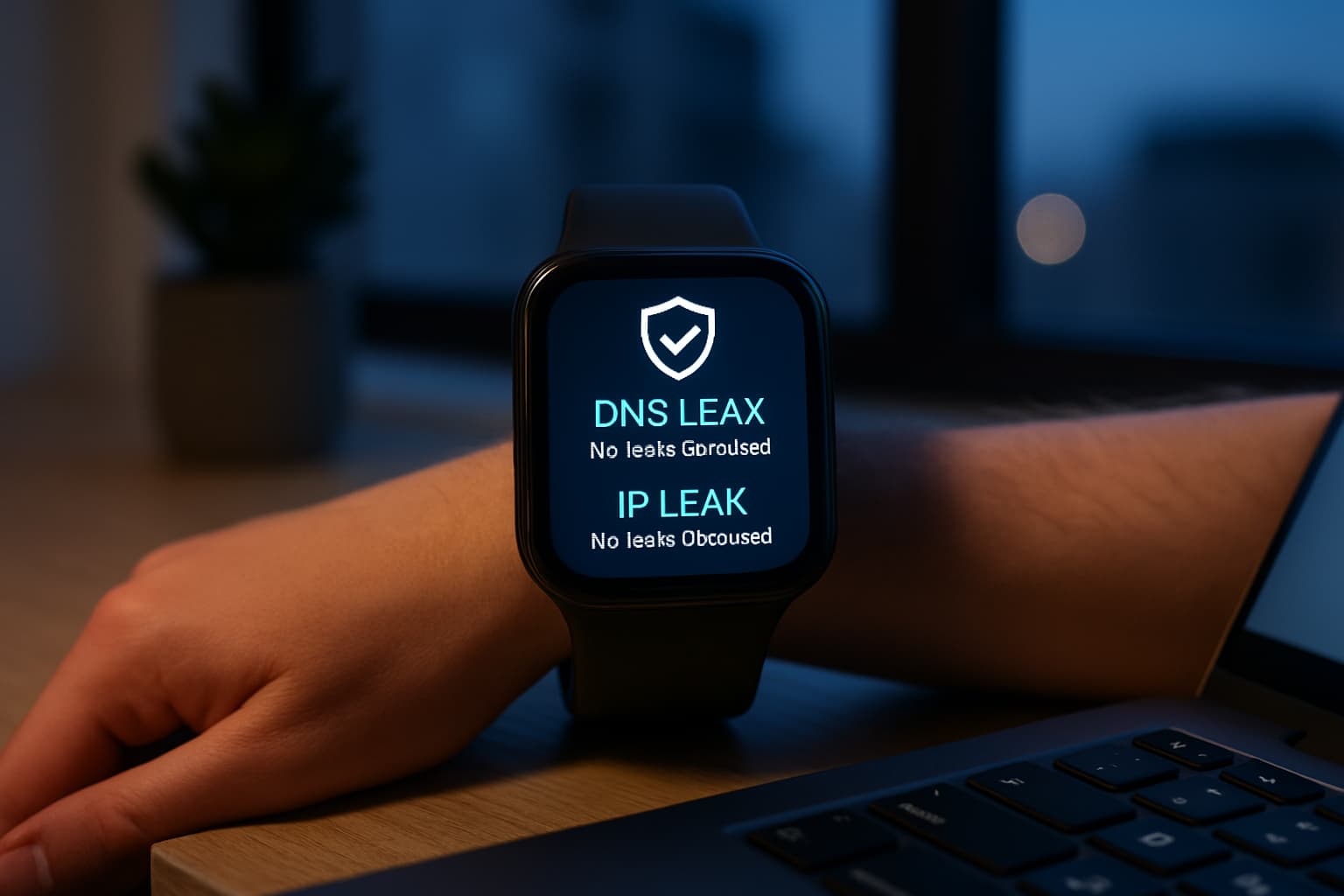
What Is a DNS Leak?
A DNS leak occurs when DNS requests are accidentally sent to an ISP's default servers instead of via an encrypted VPN service. When you visit a website, your device sends a DNS query to translate the domain name into an IP address. ISPs can easily monitor the sites you visit through these queries.
A VPN should prevent this by routing those queries through its own encrypted servers. But when a DNS leak occurs, it exposes the domain names of the sites you visit. Your IP address remains hidden from websites (the VPN is working correctly there), but your ISP can still see the exact list of every domain you looked up in real time. For someone using a VPN specifically to keep their ISP from tracking their browsing habits, a DNS leak defeats the entire purpose without any visible warning sign.
What Is an IP Leak?
An IP address leak is the accidental exposure of your real IP address to third parties, including websites, internet service providers (ISPs), and advertisers, even though you're using a VPN to hide it. These parties should see the IP address provided by your VPN, but instead, your real IP address is exposed.
An IP leak occurs when your VPN fails to mask your real public IP address with one of its own. It's a serious privacy risk, as any websites you visit will be able to see your true location and potentially identify you. Unlike DNS leaks, which are relatively common, IP leaks are actually the least common leak type, as most modern VPNs handle basic IP masking well.
Why These Leaks Happen
DNS leaks occur due to incorrect network configurations, VPN malfunctions, and problems with IPv6 compatibility. The most common culprit is IPv6. If your VPN doesn't support or properly block IPv6 traffic, your device may send DNS queries over IPv6 directly to your ISP, even while your IPv4 traffic is safely inside the VPN tunnel.
On Windows specifically, the problem is systemic. Windows' Smart Multi-Homed Name Resolution feature sends queries to multiple resolvers simultaneously and uses whichever responds first. Certain applications can also bypass the system resolver entirely.
If your VPN drops for even a moment, most systems will instantly fall back to using your ISP's DNS servers. Browser configurations can also cause problems—some browsers may be configured to use their own DNS servers instead of those provided by the VPN.
IP leaks stem from VPN connection drops due to network instability, server issues, or software bugs. During these brief moments, your internet traffic may revert to your normal unprotected connection, exposing your real IP address. IPv6 leaks are also common since most VPNs do not recognize IPv6, masking only IPv4 while leaving IPv6 addresses exposed.
How to Test for DNS and IP Leaks
Testing your VPN is straightforward. Most comprehensive tests run all three checks simultaneously and give you a verdict in under 30 seconds. Before testing, record your baseline values: your public IPv4 address, your public IPv6 address (if shown), the DNS server addresses displayed, and your geographic location as reported by the site.
Step-by-Step Testing Process
Testing your IP address:
- Switch your VPN off
- Go to whatismyipaddress.com and note your public IP address
- Switch your VPN on and connect to a server
- Re-check your IP address
The address should be different and display the new address assigned to you by your VPN. If you're still seeing your original IP address, you're experiencing an IP address leak.
Testing your DNS:
If the VPN is working correctly, the DNS servers should no longer be associated with your ISP. They will either belong to the VPN provider or to a trusted third-party resolver. Seeing your ISP's DNS servers after connecting to the VPN strongly suggests a DNS leak.
This test checks whether your DNS requests are being routed through your VPN's encrypted tunnel or leaking out to third-party DNS servers. A DNS leak test sends unique DNS probe requests to specially configured subdomains, with each probe triggering a DNS lookup that can be traced back to the DNS server that handled it.
Free Testing Tools
Common testing sites include ipleak.net as a general all-in-one testing site created by AirVPN, along with different Perfect Privacy test tools. Additional options include dnsleaktest.com for DNS-specific testing and browser leak testing services. The entire test runs in seconds, requires no signup, and works on any device or browser.
If you run the test and see your real IP address, your ISP's DNS servers, or a WebRTC result matching your physical location, then your VPN is leaking. The test labels each result clearly so you can identify the specific leak type and fix it.
How to Prevent and Fix Leaks
Once you've identified a leak, fixing it usually involves configuration changes rather than replacing your VPN entirely.
Enable VPN Leak Protection
Confirm your VPN app has DNS leak protection enabled—nearly every reputable provider has this as a toggle in settings and it should be on by default. Use the VPN provider's DNS handling, kill switch, and block-outside-DNS options where available.
Fix DNS Configuration Issues
The solution is to ensure that once connected to the VPN, you are using only the DNS servers provided by the VPN service. The most effective fix is to switch to a VPN service that runs its own zero-log DNS servers, keeping your queries inside the VPN tunnel and out of any third-party's hands.
For manual configuration, flush the DNS cache by opening a Command Prompt (Start > CMD) and entering the following command: ipconfig /flushdns. On macOS, clear caches via dscacheutil -flushcache and restart mDNSResponder with killall mDNSResponder.
Handle Browser DNS Settings
Add browser-level protection with DNS-over-HTTPS (DoH), which encrypts the DNS query itself so it can't be read even if it slips past the VPN tunnel.
For Chrome: Settings → Privacy and Security → Security →