
Smart Speaker Setup Guide for Whole House Audio
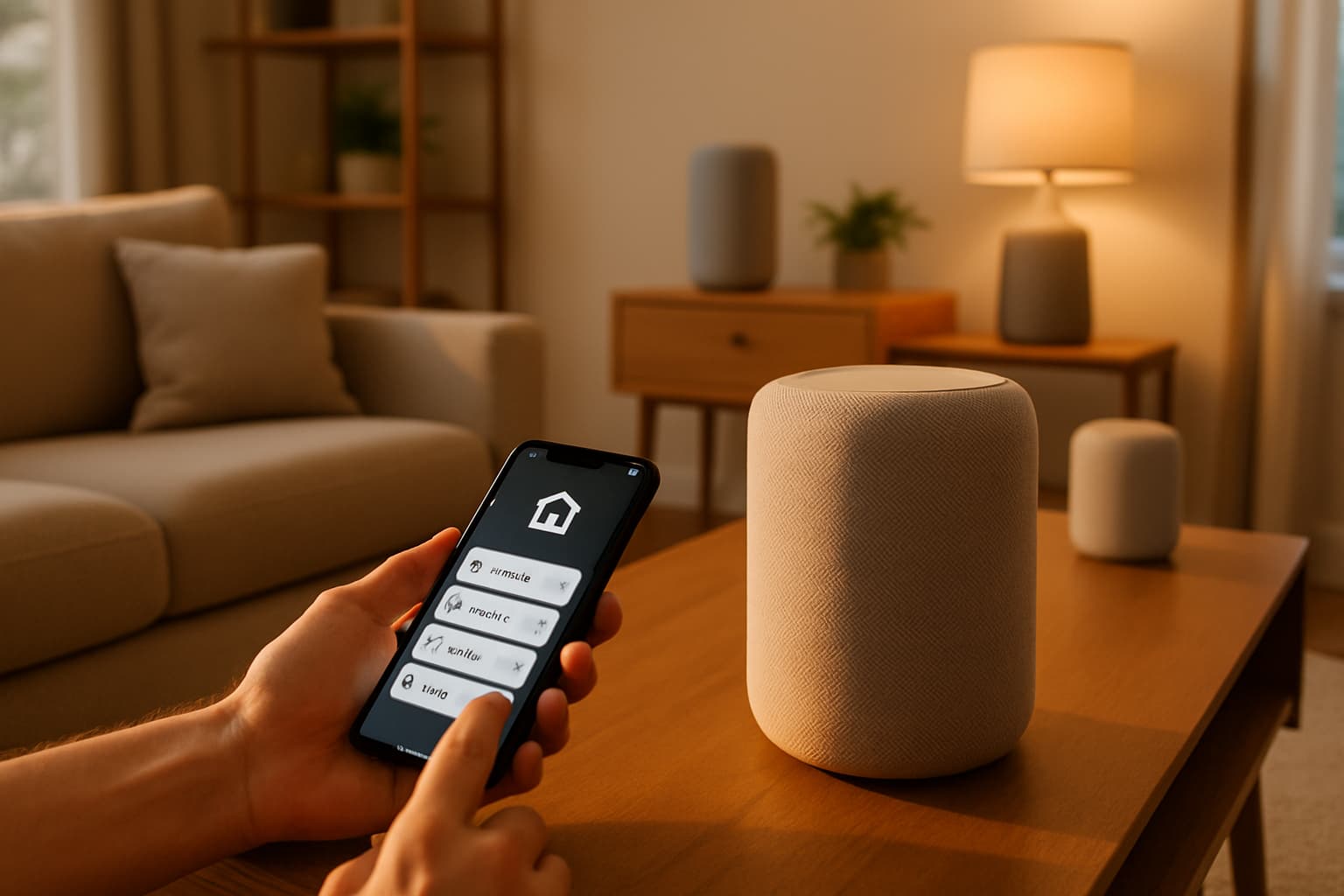
How to Set Up Multi-Room Audio and Smart Speakers Throughout Your Home
Multi-room audio transforms your home into a seamless soundscape. Whether you want to follow your favorite playlist from the kitchen to the living room or sync music across your entire house, a well-configured smart speaker system delivers exactly that. This guide walks you through planning, setting up, and optimizing a whole-house audio setup that works.
Choose Your Ecosystem First
The first decision is often the most critical: which smart speaker ecosystem will you embrace? Popular choices include Amazon Alexa (Echo devices), Google Assistant (Nest devices), Apple HomeKit (HomePod), and Sonos. Sticking with a single ecosystem simplifies setup and ensures all features work smoothly together.
To create a multi-room audio setup, it's crucial to stick to smart speakers from the same brand. However, while future interoperability standards like Matter will bridge some gaps, starting with a primary ecosystem often simplifies the initial setup and ensures the most robust feature set within that brand's offerings.
Plan Your Zones and Room Layout
Before buying speakers, map out your home's audio zones. Think about how you want to divide your home into audio zones. Do you want separate control for each room, or do you prefer to group certain areas (e.g., open-plan living/dining)?
For a multi-room setup, consider a mix of sizes and capabilities. Smaller speakers might be perfect for bathrooms or kitchens, while larger, more powerful speakers are ideal for living rooms or dedicated entertainment spaces. You'll need at least one speaker in each room where you want to enjoy music. The options are diverse, ranging from standalone wireless speakers to smart speakers, soundbars, subwoofers, AV receivers, stereo amplifiers, and network streamers.
Optimize Your Wi-Fi Network
Multi-room audio depends almost entirely on network reliability. A robust Wi-Fi network is paramount. Ensure your router is up to the task, especially if you have many smart devices.
Google Home multi-room audio works best when every device shares the same Wi-Fi network and sits within solid signal range. For larger homes, consider upgrading to a mesh Wi-Fi system for larger homes or those with thick walls that can impede signal strength.
Network quality directly impacts sync performance. WiFi stability matters more than speed. Multi-room audio doesn't need much bandwidth — even uncompressed CD-quality audio is only about 1.4 Mbps. But it needs consistent latency. Dedicate a 5GHz band for audio streaming if possible, as it offers higher bandwidth and less interference than the 2.4GHz band.
The low latency provided by Wi-Fi 6 enhances the synchronization of audio across multiple rooms. This is especially beneficial when you are streaming music to several WiiM devices simultaneously, as the faster response times ensure a more seamless experience without audio lag or delays.
Speaker Placement for Best Sound
Where you place speakers matters significantly. Leave a gap behind the speaker rather than pushing it flush to a wall. Sonos's own placement guidance calls for at least an inch of clearance behind smaller speakers like the One, and around 2 inches behind larger models such as the Five, with the device sat flat on a stable, non-metal surface.
Try to keep your speakers at least 2-3 feet away from the nearest walls. This will minimize "Boundary Interference" and sound reflections, which can negatively impact playback clarity. In addition, speakers placed in corners can create undesirable bass buildup, creating an unbalanced sound.
Aim for roughly ear height when you're seated or standing in the room you use most. Google's official guidance for pairing Nest and Home speakers recommends positioning both units at the same height — ideally around the height of your ears — rather than one on a high shelf and one on a low table. A consistent height keeps the stereo image balanced and stops one speaker dominating the room simply because it's closer to your ears.
For stereo pairs, the distance between the 2 speakers should be roughly the same as the distance as each speaker to your listening position—so that you form something close to an equilateral triangle. Perfect room symmetry is not always possible in a home setup, but if you can at least create a triangle between the two speakers and your listening position, you're eliminating many of the problems you could encounter.
Set Up Each Speaker Manually
Unbox and place each speaker in its intended room, keeping them near power and within network range. Install the manufacturer app on your phone or tablet. Create or sign in to your account so the system can save room assignments and preferences. Connect each speaker to Wi-Fi or Ethernet, following the app instructions.
Name each room clearly such as Kitchen, Primary Bedroom, Patio, or Office. Clear naming makes voice commands and app control intuitive.
Create Speaker Groups
Once all speakers are online, group them for multi-room playback. The process varies by platform.
For Amazon Alexa:
- Alexa app → Devices → + → Add Group → Multi-Room Music
- Name the group (e.g., "Everywhere," "Downstairs")
- Select which Echo devices to include
You can use Amazon Music, Apple Music, Spotify, SiriusXM, Pandora, iHeartRadio, Audible, plus podcasts, news, and more for Multi-room audio.
For Google Home:
- Tap the Settings cog, then tap Add (+), then tap on Speaker Group
- Tick each speaker that you want in the group
- Tap Next, then enter a name for the speaker group
For Sonos:
- Open the Sonos app. Tap the Group icon on any speaker's Now Playing screen. Select which rooms to include. Music plays in sync across all selected rooms.
Control Playback
The app acts as the control centre. It lets you group speakers, split them into zones, adjust volume, and choose what each room is playing. In many cases, your phone is not actually streaming the music directly. Instead, it sends instructions, and the speaker pulls the audio itself from Spotify, TIDAL, internet radio, or another service.
You can also use voice commands. You can also just say, "Alexa, play music everywhere," and music or audio will play together on all the supported devices throughout your home. Similarly, to play audio on all speakers simply say "Okay Google, pay [song name] on Home group."
Optimize Sound Quality
The Sonos app, for example, has a TruPlay feature that plays a specific tone that is then captured by your smartphone's mic. The app tries to determine your room's acoustic character, and makes tone adjustments to compensate. Use these built-in optimization tools after placement.
Troubleshoot Sync Issues
Occasionally, audio may play out of sync across rooms. Verify all group members show strong Wi-Fi signals. In the Alexa app, check each device's Wi-Fi signal strength under device settings. Weak signals on any device cause that device to drop out of group playback or fall out of sync.
Devices in multi-room groups should ideally connect to the same Wi-Fi access point or router. In homes with multiple access points or mesh networks, having group members connected to different access points can introduce latency variations that affect synchronization.
Small sync discrepancies (under 50 milliseconds) are generally imperceptible. Delays of 100-200 milliseconds create a noticeable echo effect. Delays exceeding 500 milliseconds make music unlistenable with obvious timing differences between rooms.
If one speaker lags, move it closer to the router or ensure it connects to the same access point as others. Restarting your router and speakers often resolves temporary sync drift.
Maintain Your System
Keep your speakers and router firmware up to date. Manufacturers improve sync algorithms over time. Outdated firmware might have timing bugs fixed in newer versions.
A multi-room audio setup transforms how you experience music at home. By choosing a single ecosystem, optimizing your Wi-Fi, placing speakers thoughtfully, and following a clear setup process, you'll have seamless, synchronized audio flowing through every room.